Compress a scanned PDF while checking what changes
Choose structural optimization or scan compression, compare the real output size and inspect readable page previews.
Updated 18 October 2026 · Published by OmniSave · Testing and corrections
Jump to the downloadable worked exampleUnderstand whether your PDF is a scan
Try selecting a sentence in a PDF reader. A document made entirely of page pictures may have no selectable text, while an OCR scan can include a searchable text layer. The file extension alone does not tell you which kind of document you have.
Try preserving page content first
The Preserve page content option optimizes document structure without recompressing page images. It can help some documents and do very little for an already optimized file. If the new file is not smaller, OmniSave provides the original instead and explains that no smaller result was found.
Use scan mode when page pictures are acceptable
Scan mode renders each page and encodes it as a JPEG inside a new PDF. Lower width and quality can reduce the size of image-heavy scans. This operation removes selectable text, including any OCR layer, as well as forms, links, annotations and signatures. It supports up to 50 pages; split larger documents first.
Review readability and actual size
Inspect the first-page preview and open the downloaded PDF to review all pages. Check small text, stamps and signatures. A generated PDF can still be larger than the original, so compare the reported size before choosing it. Keep the original when you need searchable text, interactive content or the source document for future edits.
ORIGINAL PRACTICE FILES · CHECKED 18 OCTOBER 2026
Worked example: compressing a noisy scanned page
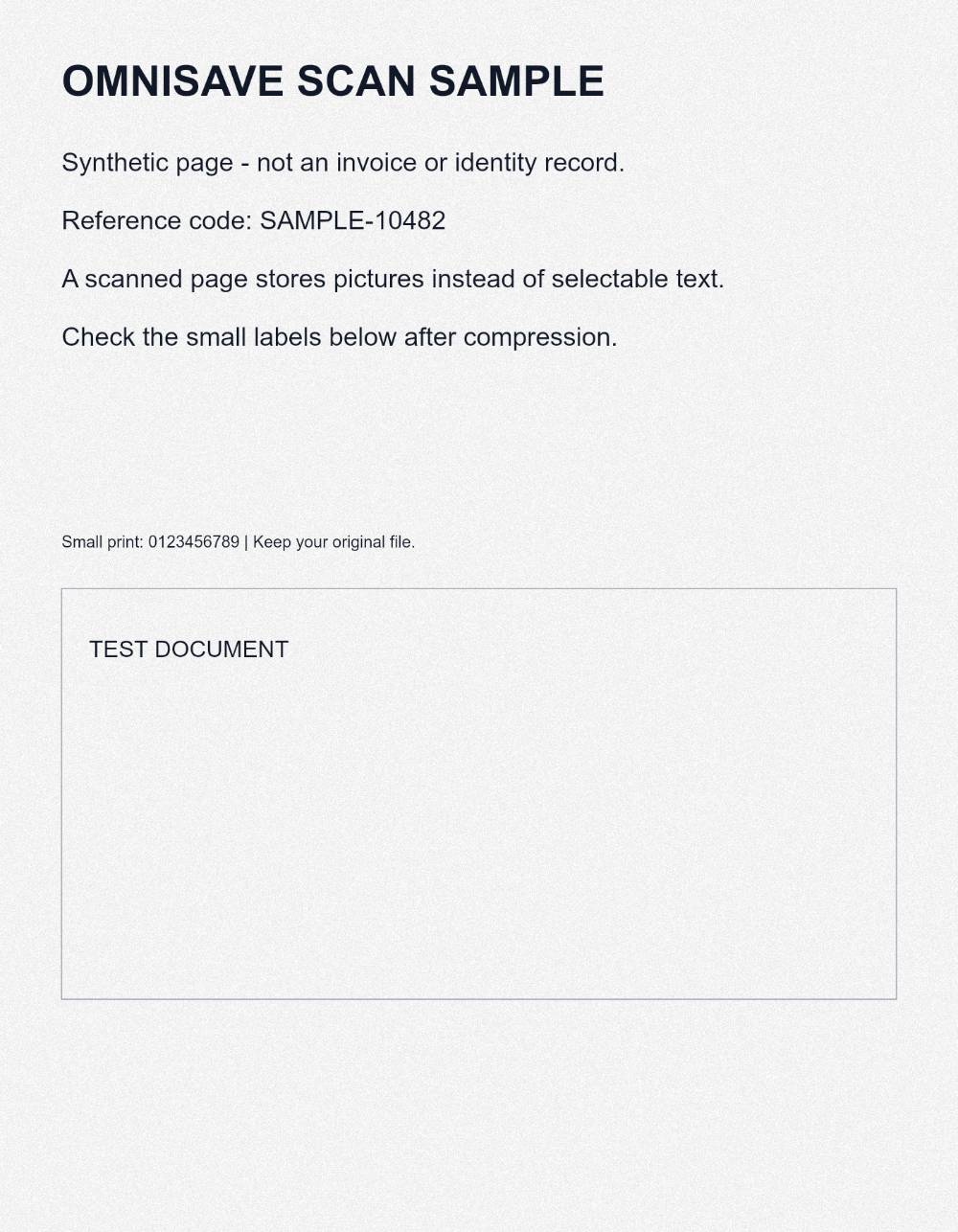
Reduce an image-only practice PDF containing a large raster page and simulated paper noise. Both downloadable PDFs contain one page. This is a deliberately image-heavy test, not a promised reduction for every document.
| Check | Original | Reference output |
|---|---|---|
| File size | 2,359,948 bytes | 117,483 bytes |
| Pages | 1 | 1 |
| Selectable text | None: image-only scan | None: image-only scan |
| Reference settings | 1,400 × 1,800 source image | 1,000 px page width; JPEG quality 70% |
Reproduce the workflow
- Load the original scan in Compress PDF. First try “Preserve page content”. This optimizes PDF structure rather than recompressing embedded page images. An already optimized scan may not become smaller.
- Choose “Smaller scanned PDF · convert pages to pictures”. Set width to 1,000 pixels and JPEG quality to 70%. The reference output is 117,483 bytes from a 2,359,948-byte original.
- Compare the first-page preview and the reported size. Download and open the entire PDF; a preview of the first page cannot certify every page of a multi-page file.
- For a real file, keep the original. Scan mode creates new page images and removes selectable text, links, forms, annotations and digital signatures. Our sample has none of those features, so it cannot demonstrate their preservation.
What to inspect before using the result
- Read the reference code SAMPLE-10482 and the small-print digits. Check whether a 0 could be confused with O, or a 1 with I, after compression. Small characters often reveal damage before headings do.
- Compare at the size someone will read or print. A PDF that looks acceptable as a small thumbnail may have unreadable fine print at full size.
- Check page count and orientation. Split a document larger than the tool’s 50-page scan-mode limit before processing, then review every resulting part.
When this workflow goes wrong
Preserve mode barely changes the size.
The bytes are mostly already-compressed page images, which structural optimization does not re-encode.
Use scan mode only if losing interactive and selectable content is acceptable; otherwise keep the original or use an editor that recompresses images selectively.
The new PDF is larger.
Rasterizing a compact text/vector page can add far more image data than the original contained.
Keep the original. A successful conversion is not necessarily a useful compression result.
Text is no longer searchable.
Scan mode replaces each page with a picture, including any previous OCR text layer.
Use preserve mode when searchable text matters. Export page pictures and run OCR separately if you only need a plain text copy.
Choose compression according to the document’s contents, not its filename. This sample demonstrates a favorable case for scan mode; it is not a universal size benchmark.
Reference method: Node.js 24; @napi-rs/canvas 1.0; production image preparation and PDF page helpers; PDF.js 6.4 reference renderer; Tesseract.js 7 English OCR. Browser encoders can produce different byte sizes. Read measured reference data · How we test and maintain these examples.