Copy printed text from an image with local OCR
Recognize English or Hindi text from a clear image, proofread the result and work with scanned PDF pages.
Updated 18 October 2026 · Published by OmniSave · Testing and corrections
Jump to the downloadable worked examplePrepare a readable image
Crop to the text you need and choose an image with clear edges, good contrast and little blur. Printed text generally works better than handwriting. Correct a sideways image before recognition. The OCR tool accepts PNG, JPEG and WebP images and reduces very wide images to at most 2,400 pixels.
Choose the language before recognizing
Select English, Hindi or English + Hindi to match the source. The first recognition loads an OCR engine and language data from jsDelivr. Image content is processed on your device and is not uploaded to that CDN. Loading and recognition can take longer on a phone or slow connection; a cancellation control is available.
Proofread the editable result
Review names, numbers, dates and punctuation carefully. The confidence estimate is not a guarantee of accuracy. Tables, columns and decorative fonts can alter word order or introduce mistakes. Edit the recognized text in the result field, then copy it or download a plain TXT file.
Handle PDFs according to their contents
Use PDF to text for documents with selectable text. For scanned PDF pictures, first use PDF to JPG & PNG to export the relevant pages, then choose an exported image in Image to text. This recognizes image text and does not recreate a Word document or preserve the page layout.
ORIGINAL PRACTICE FILES · CHECKED 18 OCTOBER 2026
Worked example: checking OCR against known text
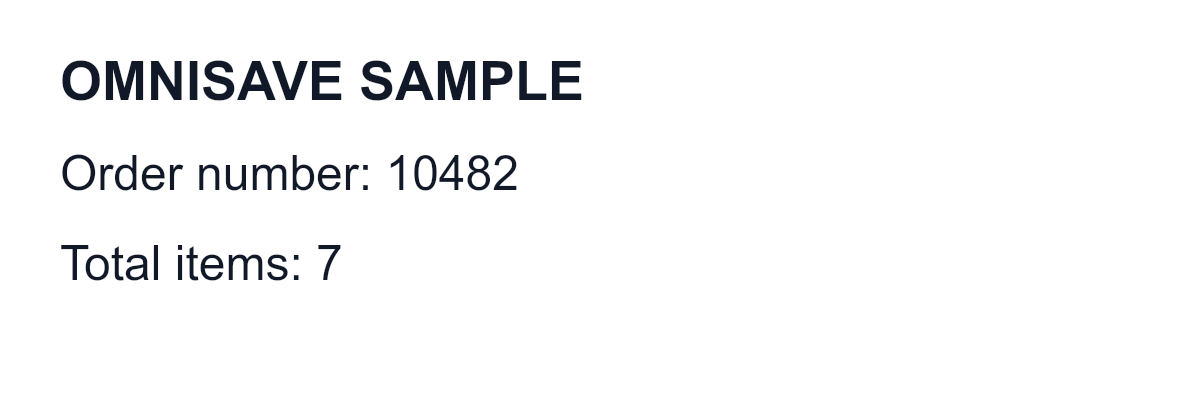
Read three printed lines from a synthetic 1,200 × 400 image. The expected text is provided separately so you can compare the result character by character instead of treating a confidence score as proof. Our Tesseract.js 7 English reference run matched all three lines and reported 94% estimated confidence; that is not a 94% general accuracy claim.
| Check | Original | Reference output |
|---|---|---|
| Input | PNG, 1,200 × 400 px | English OCR |
| Expected order number | 10482 in the image | 10482 in the checked text |
| Output format | Picture of printed text | Editable plain text; not a formatted document |
Reproduce the workflow
- Load the sample in Image to text and choose English. It has three clear horizontal lines and no handwriting or columns. Leave the image at its original orientation.
- Choose Recognize text. The first run downloads the OCR engine and language data; later runs may use cached assets. Your selected image stays on your device.
- Compare the result with the downloadable expected text: OMNISAVE SAMPLE, Order number: 10482, Total items: 7. Check spaces, capitalization and punctuation as well as the digits.
- Correct any differences in the editable result before copying or saving. The expected TXT is a ground-truth reference, not a claim that every engine or image will produce an exact match.
What to inspect before using the result
- The order number is the critical field in this exercise. In your own work, identify the fields that matter most—names, amounts, dates or reference numbers—and compare them directly with the image.
- A confidence estimate summarizes the engine’s recognition. One important wrong digit can remain even when that estimate is high. Never approve a result just because its percentage looks reassuring.
- To test another language, supply a clear image in that language and select Hindi or English + Hindi. This English sample does not establish Hindi accuracy or mixed-script performance.
When this workflow goes wrong
The first run takes longer than expected.
Engine or language files may still be downloading, or the device may have limited resources.
Check the connection, allow the initial load to finish or cancel and retry with a smaller crop.
Lines appear in the wrong order.
Columns, tables or decorative layouts do not necessarily map to a simple reading sequence.
Crop one block or column at a time. This tool produces text, not a reconstruction of a spreadsheet or Word layout.
A scanned PDF cannot be selected.
This OCR input accepts PNG, JPEG and WebP, not PDFs.
Use PDF to JPG & PNG first, then recognize the exported page image. Use PDF to text directly if the PDF already has selectable text.
The safest OCR workflow is recognize, compare, correct, then export. Keep the source image whenever the text will be used for a consequential decision.
Reference method: Node.js 24; @napi-rs/canvas 1.0; production image preparation and PDF page helpers; PDF.js 6.4 reference renderer; Tesseract.js 7 English OCR. Browser encoders can produce different byte sizes. The expected OCR text is a comparison key, not an accuracy guarantee. Read measured reference data · How we test and maintain these examples.