Make a scanned PDF searchable without uploading it
A complete scan-to-search workflow: choose the right input, recognize printed English, check errors and verify the downloaded PDF.
Updated 18 October 2026 · Published by OmniSave · Testing and corrections
Jump to the downloadable worked exampleDecide whether the document actually needs OCR
Open your original in a PDF viewer and try selecting a complete sentence. Copy it into a plain text editor. If the pasted sentence is correct, you already have usable text; OCR would replace that reliable layer with an estimate. Use PDF to text when all you need is a transcript. A document that looks like text but only lets you select a page-sized picture is a good OCR candidate. Some PDFs mix digital pages with scanned attachments. Select only the pages you need, rather than rebuilding the entire file.
Start with a clear, upright page
OmniSave currently recognizes printed English in scanned PDFs. It does not automatically rotate sideways pages, decipher handwriting or restore information lost to blur. Use Preview & prepare pages to rotate a sideways scan before recognition. Crop out unrelated borders and try a modest contrast increase. Preview the changes: too much contrast can erase pale print. Preparation changes both the page image saved in your output and the image sent to local OCR. A flat, well-lit scan with dark letters on a light background is easier to read than a phone photo with a curved binding or shadow. The workspace renders each page at up to 2,000 pixels wide. Fine footnotes on a very large engineering drawing may become unreadable at that size; keep your original and use a desktop OCR application when you need higher-resolution processing.
Choose pages deliberately and keep the original
You can open an unprotected PDF up to 50 MB and choose at most ten pages per recognition batch. Enter 1, 3-5 to include the first page followed by pages three through five. Those physical positions include the cover; printed page labels can differ. Only selected pages appear in the new document, in your entered order. Start with one page on a phone. The first recognition downloads the engine and English language assets, and a longer batch can take several minutes. Leave the tab open. Cancelling discards an incomplete batch rather than offering a partial document that looks complete.
Review words before making a searchable copy
Each page has an expandable image and transcript. Compare them side by side, especially names, dates, reference numbers and amounts. The engine confidence is not a measured accuracy rate. A clean-looking result can still confuse 0 and O, join two columns or lose punctuation. If only one page needs another attempt, rerun that page without repeating the others. Changing its preparation clears its old recognition and disables PDF export until every selected page has a fresh result. The preview is the unedited OCR transcript; it is not a text editor and does not imply corrections have been applied to the PDF. If the source is poor, cancel and improve the scan before rerunning. The TXT download includes original page headings so that you can find a doubtful line again.
Understand what the output preserves
The output contains a rendered image of each selected page and transparent text over recognized words. This makes the page searchable while retaining its visible snapshot. It does not recreate editable layout, tagged headings or tables. Rebuilding the pages removes original forms, signatures, links, bookmarks and any existing text layer. It can also make the PDF larger. English text is supported in the search layer; words containing characters unavailable in its font are counted and omitted from that layer, while the full transcript retains them. An omission notice is a reason to inspect the transcript rather than assuming every recognized word can be searched.
Verify the actual download
Open the downloaded PDF in the viewer you intend to use. Search for a phrase from the middle of a page, then copy a sentence into a plain text editor. Check the order, page count, visible small print and the first and last selected pages. Search should find the phrase without changing the page appearance; copying may have different spacing from the original layout. Do not treat this as PDF/UA accessibility or PDF/A archival certification. Keep the original alongside the searchable copy. If another person will rely on its text for an important decision, proofread that passage against the image.
Try an original, reproducible sample
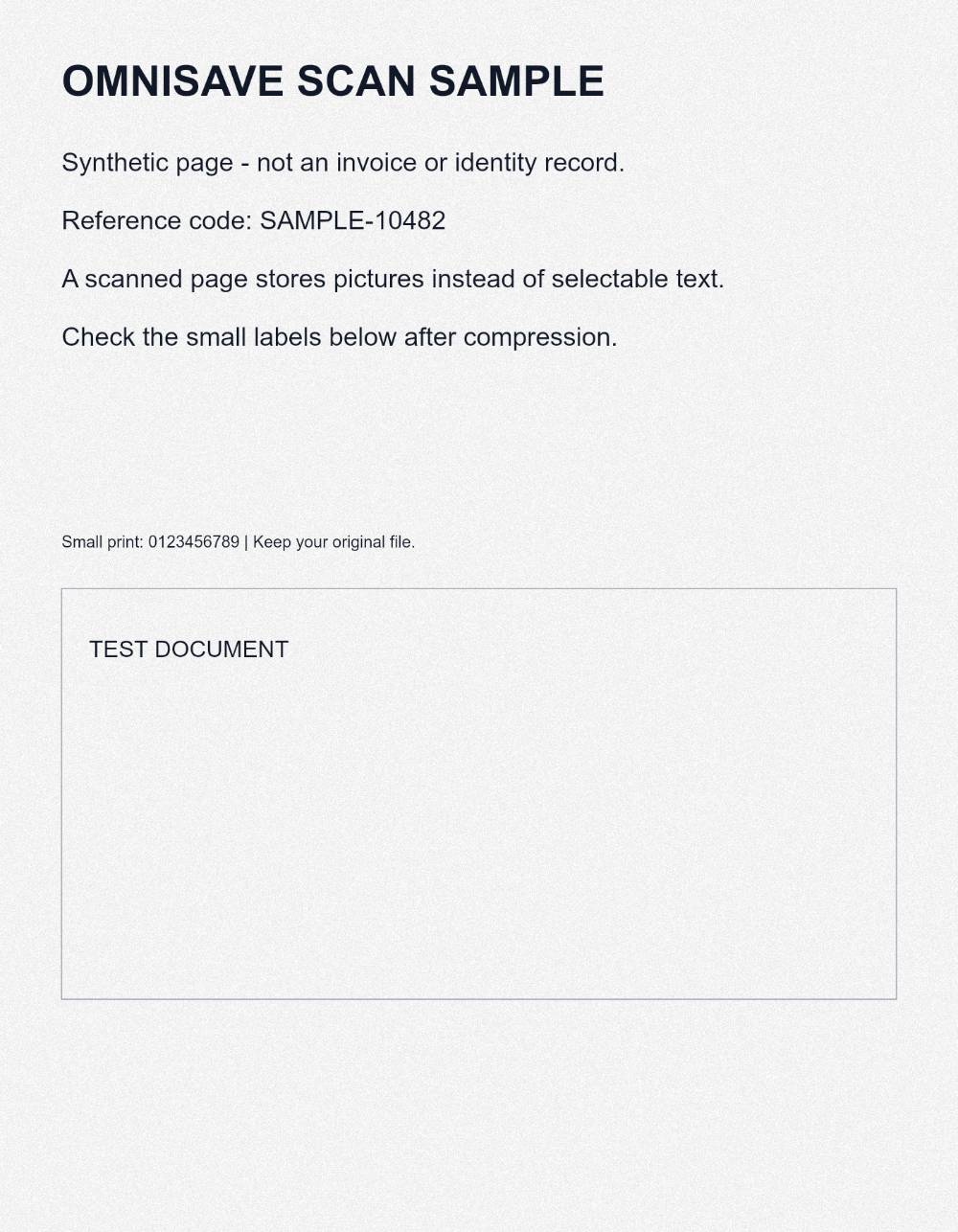
The workspace offers our synthetic sample scan, with no private document or personal details. The sample below includes the source, the reference searchable PDF and a recognition report. Its measurements describe that file and one engine run, not a general accuracy claim. You can load the source in the workspace, run recognition yourself and compare search results and page appearance. Local engine versions and rendering differences can change the exact output bytes.
ORIGINAL PRACTICE FILES · CHECKED 18 OCTOBER 2026
Worked example: a scan with a real search layer
Make our synthetic scan searchable and verify a reference code. This is also a failure example: recognition missed the large heading, despite an estimated confidence of 94%. The image is retained, but that heading cannot be found through the new text layer.
| Check | Original | Reference output |
|---|---|---|
| File size | 2,359,948 bytes | 2,907,019 bytes |
| Searchable reference code | No text layer | SAMPLE-10482 found |
| Page count | 1 | 1 |
| Recognized search words | 0 | 38 |
Reproduce the workflow
- Load the original sample in Scanned PDF to searchable PDF. Select page 1, choose Preview & prepare pages and keep the original preparation settings for this reference. Then recognize the prepared page.
- Expand the page and compare every part with the transcript. The reference run recognized the reference code and body but missed the large heading. Estimated confidence did not expose that omission.
- Create the searchable PDF and open the downloaded file. Search for SAMPLE-10482, then try the heading. The first should match in the reference output; the missing heading will not.
- Compare the visible original and result. The output is larger because it includes a 2,000-pixel rendered page and the added text layer. Searchability is the goal here, not compression.
What to inspect before using the result
- Check the reference code, dates and numbers against the image. Do not use confidence alone to accept a page.
- Check small print at a comfortable zoom. The independent PDF render comparison measured a small resampling difference, so the output is not a byte-identical preservation of the source image.
- Keep your original. This sample does not demonstrate preservation of forms, digital signatures, accessibility tags or archival compliance.
When this workflow goes wrong
A visible heading cannot be found by search.
OCR can omit an entire text region even when the page confidence looks high. Our reference run missed its large heading.
Compare the transcript with every page region. Use a clearer scan or a dedicated OCR editor when complete recognition or manual correction is essential.
The new PDF is larger than the input.
The page is rendered to PNG before embedding. Adding OCR is not a compression operation.
Keep both files and choose the searchable version only when search and copying are useful. Avoid repeated lossy conversions of small print.
A meaningful OCR check tests both what was found and what was missed. This sample proves a search layer exists; it does not prove that every visible word was recognized.
Reference method: Node.js 24; @napi-rs/canvas 1.0; production image preparation and PDF page helpers; PDF.js 6.4 reference renderer; Tesseract.js 7 English OCR. Browser encoders can produce different byte sizes. Read measured reference data · How we test and maintain these examples.