How to merge, organize and number PDF pages
Build a clean PDF from multiple documents, put pages in order, and add page numbers without uploading your files.
Updated 18 October 2026 · Published by OmniSave · Testing and corrections
Jump to the downloadable worked exampleKeep originals and decide on the final order
Make a copy of each source PDF before editing. Write down the desired order: cover, main document, then supporting material. Check whether any file is protected or digitally signed. Saving an edited PDF can invalidate a signature, and page-copying tools may not preserve forms or bookmarks.
Merge documents in the order you want
Choose the files in Merge PDF, review their order, and create the combined document. OmniSave accepts up to 20 files for this operation, with a 50 MB total input limit and a 500-page limit for the combined output. If you need to keep an entire document together, correct the file order before merging.
Remove and rearrange individual pages
Open the combined file in Organize PDF when you need finer control. Keep only the required pages, change their order, and rotate sideways pages. Page ranges use one-based numbering: 1, 3-5 selects the first page and pages three through five. Review the output because document page numbers printed on the page may differ from its position in the file.
Add numbers after the page order is final
Use Add PDF Page Numbers on the final document. Choose a starting number and a left, center or right footer; optionally include the word Page. This tool numbers every page, including a cover. It adds text and does not remove an existing footer, so leave space and check that labels do not overlap content.
Check the saved PDF before sharing
Open the download in a PDF viewer. Check the first and last pages, rotated pages, page count, text readability and any links or forms you rely on. These tools run locally in your browser and support unprotected PDFs with 1–500 pages. For editing scanned text, OCR or preserving complex signed forms, use a dedicated document editor.
ORIGINAL PRACTICE FILES · CHECKED 18 OCTOBER 2026
Worked example: keep pages 3 and 1, then number them
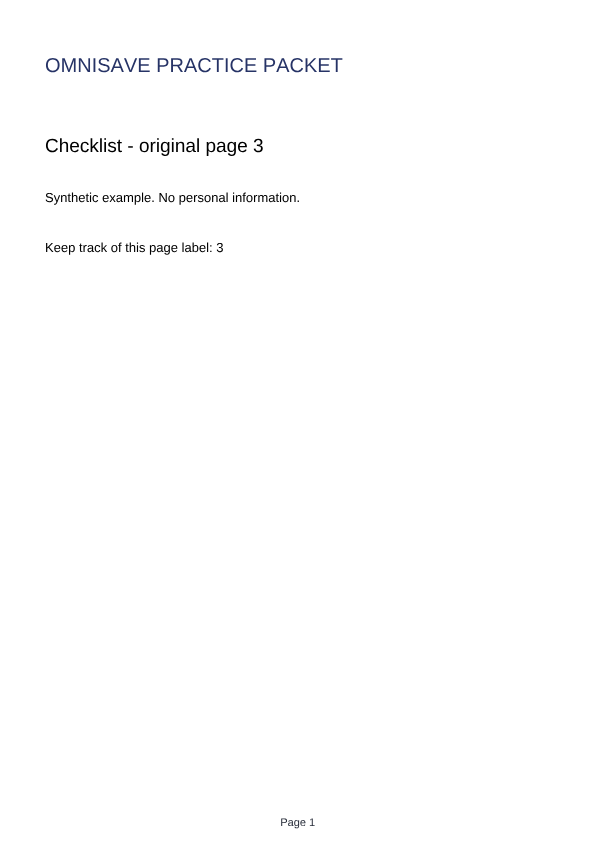
Turn a three-page synthetic practice packet into a two-page document. The original cover is page 1, a receipt sample is page 2, and a checklist is page 3. The final reading order should be checklist, then cover, with new footer labels Page 1 and Page 2.
| Check | Original | Reference output |
|---|---|---|
| Page count | 3 | 2 |
| Original page order | 1 → 2 → 3 | 3 → 1; original page 2 omitted |
| New footer sequence | None | Page 1 → Page 2 |
Reproduce the workflow
- Load the original packet in Organize PDF and choose Load page previews. Read the labels printed inside each page, rather than identifying pages from their thumbnail positions alone.
- Remove original page 2. Move original page 3 earlier so the visible order is original page 3 followed by original page 1. The arrow buttons provide an alternative to dragging.
- Save the organized PDF, then use Keep working with this file to continue to Add PDF page numbers. Set starting number 1, center position and the Page prefix.
- Save the numbered document. Open it independently and confirm that the first page says “Checklist - original page 3” with footer Page 1, and the second says “Cover - original page 1” with footer Page 2.
What to inspect before using the result
- Original page labels and new page numbers serve different purposes. A page can retain “original page 3” in its body while being the first page of the new file; the tool does not rewrite existing content.
- Our reference output is slightly larger than the original even though it has fewer pages. PDF container overhead and added numbering can outweigh the small amount of removed content in a tiny test file.
- For a real packet, check whether an omitted page was referenced elsewhere. Reordering does not update a table of contents or the words “see page 7” in the original document.
When this workflow goes wrong
The wrong page was removed.
A printed page number was confused with its position in the original PDF.
Reset pages before saving and read the previews. Keep an untouched original so you can restart after downloading.
Two page numbers appear on each page.
The source already had a printed footer. Numbering adds text and does not erase it.
Decide whether a new sequence is necessary. Do not use page numbering as a redaction or footer-removal tool.
A form, bookmark or signature changes.
Page copying creates a new PDF and may not retain document-level features.
Use a dedicated editor for signed or interactive documents. This simple packet demonstrates page content and order, not complex document preservation.
Finalize page selection and order before numbering. Verify the downloaded file by its page labels and content, not only by the success message.
Reference method: Node.js 24; @napi-rs/canvas 1.0; production image preparation and PDF page helpers; PDF.js 6.4 reference renderer; Tesseract.js 7 English OCR. Browser encoders can produce different byte sizes. Read measured reference data · How we test and maintain these examples.