How to compress an image under 100 KB without guessing
Fit an image to a real upload limit, compare quality and dimensions, and save a reusable preparation preset.
Updated 18 October 2026 · Published by OmniSave · Testing and corrections
Jump to the downloadable worked exampleRead the upload requirements first
Check both the maximum file size and the required dimensions. A form may reject a small image because its width or height is wrong. Check the allowed formats too: a WebP file will not satisfy a JPEG-only form even if the size is correct.
Set a byte limit rather than guessing a quality percentage
Open Compress image to size and choose your image. Set the target to 100 KB, or another limit required by your destination. OmniSave defines a KB as 1,024 bytes; 100 KB is 102,400 bytes. If a form uses 100,000 bytes, use a slightly lower target such as 97 KB. Successful outputs display the actual byte count.
Decide whether dimensions can change
Enable dimension reduction when a smaller image is acceptable. The tool searches JPEG or WebP quality settings first, then reduces width and height only when that option is enabled. For an exact-dimension requirement, disable it. If the file cannot fit, increase the limit or reconsider the image dimensions rather than accepting an oversized result.
Inspect the result and keep a preset
Compare Original and Result, paying particular attention to faces, signatures and small lettering. Low file size can come at the cost of readability. Check dimensions and byte count before downloading. A named preset stores your settings on this device, so the next image can use the same limit without repeating the setup. Your files are not stored in the preset.
ORIGINAL PRACTICE FILES · CHECKED 18 OCTOBER 2026
Worked example: a textured image under 100 KB
Prepare our 1,200 × 900 synthetic upload chart for a maximum 102,400-byte limit, while keeping its original dimensions. The texture deliberately makes the source harder to compress than a plain screenshot. It contains no personal information.
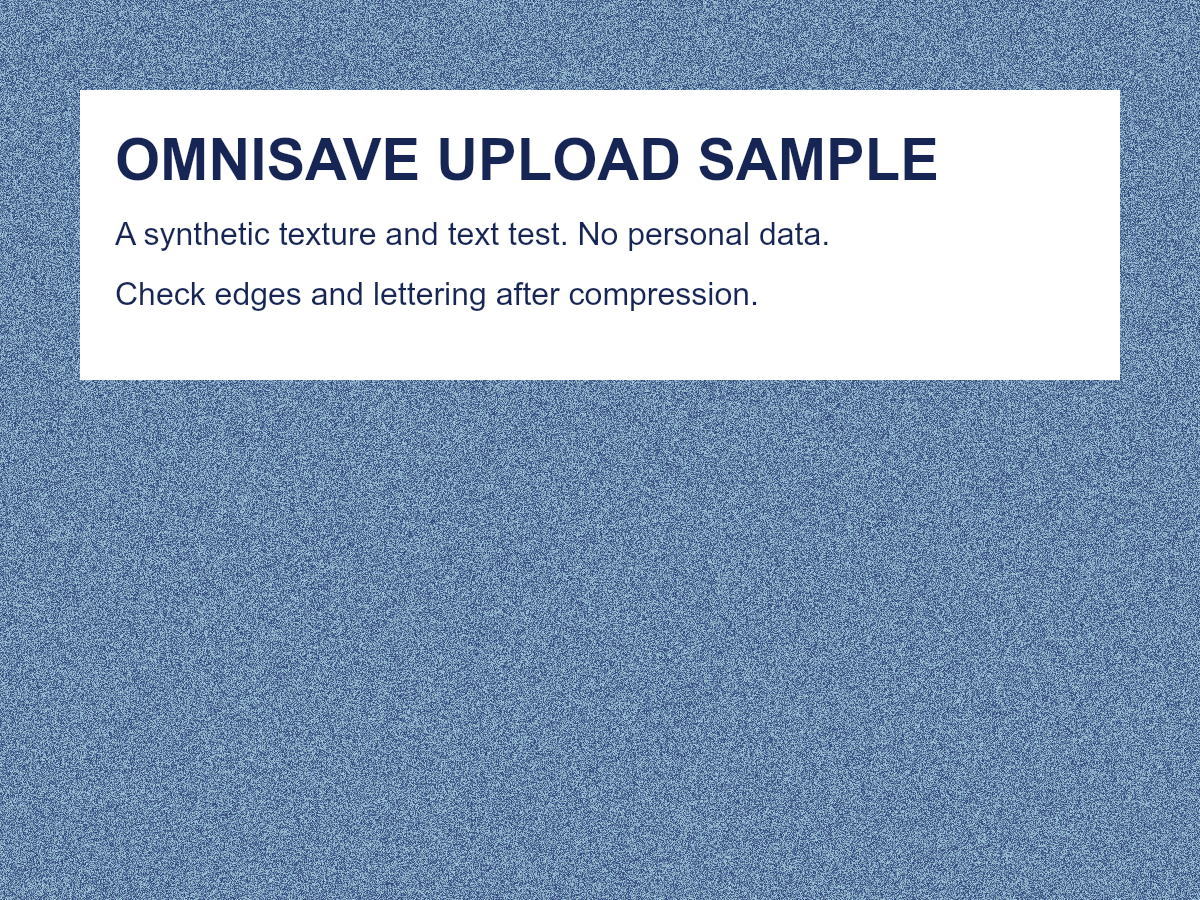
| Check | Original | Reference output |
|---|---|---|
| File size | 2,383,432 bytes | 98,655 bytes |
| Dimensions | 1,200 × 900 px | 1,200 × 900 px |
| Format | PNG | JPEG |
Reproduce the workflow
- Load the sample in Compress image to size. Choose JPEG and a maximum size of 100 KB. Keep proportions enabled and set the output width to 1,200 pixels.
- Disable “Allow smaller dimensions” for this exercise. This isolates quality changes: a smaller width should not be accepted as a substitute for keeping the original dimensions.
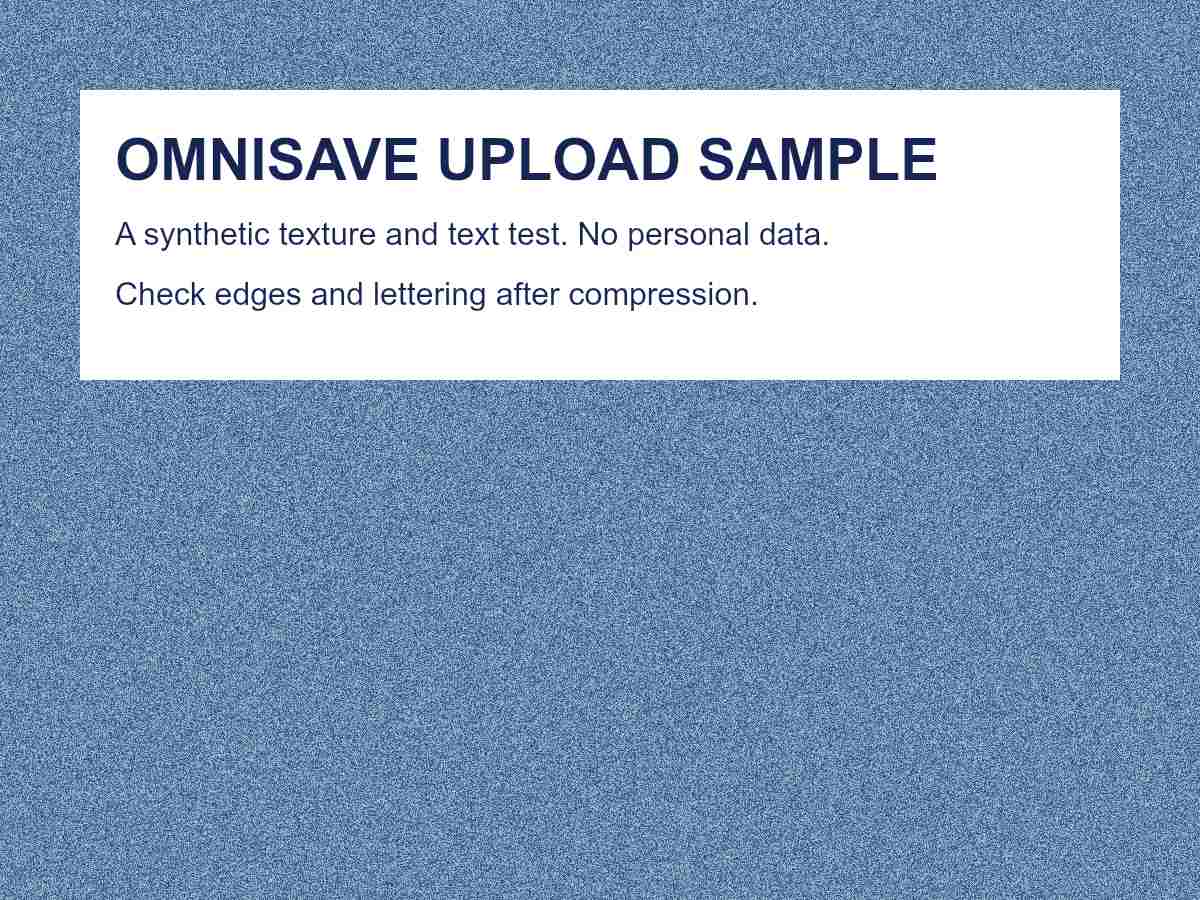
- Prepare the image. Read the actual byte count, then compare Original and Result. The reference JPEG is 98,655 bytes; your browser may choose a different encoding quality and return another size below the limit.
- If your destination defines 100 KB as 100,000 bytes, enter 97 KB instead. Here 97 × 1,024 = 99,328 bytes. A result below 102,400 bytes can still exceed a destination’s decimal limit.
What to inspect before using the result
- Read the white-panel lettering at normal viewing size and zoom into the boundary between the lettering and background. JPEG compression can create faint halos around sharp edges.
- Compare the textured area. A smaller file smooths fine variation; this is expected loss, even if the dimensions remain unchanged. Decide whether that loss is acceptable for your actual photo or document.
- Check size, width, height and format independently. A renamed .jpg extension does not turn a PNG into a JPEG, and a visually clear preview does not prove the byte limit is satisfied.
When this workflow goes wrong
The upload form still says “file too large”.
The form may count decimal bytes, apply a smaller limit or reject the selected format.
Compare the reported bytes against the exact rule. Try 97 KB for a 100,000-byte maximum and export JPEG if the form requires it.
Fine lettering looks fuzzy.
JPEG reduces detail to reach a strict budget. A busy background spends bytes that could otherwise preserve lettering.
Crop unnecessary background, use a clearer original or allow a larger limit. Do not keep recompressing an already compressed download.
The tool reports that the limit cannot be met.
Dimensions are locked and even low quality is too large.
Keep locked dimensions if they are mandatory. Otherwise enable dimension reduction and recheck the resulting width and height.
The useful result is a file that meets all of the destination’s rules and remains readable. A percentage reduction by itself does not establish that.
Reference method: Node.js 24; @napi-rs/canvas 1.0; production image preparation and PDF page helpers; PDF.js 6.4 reference renderer; Tesseract.js 7 English OCR. Browser encoders can produce different byte sizes. Read measured reference data · How we test and maintain these examples.