Prepare a photo or signature for an online application
Enter the requirements from your form, crop without stretching and verify the final dimensions and size.
Updated 18 October 2026 · Published by OmniSave · Testing and corrections
Jump to the downloadable worked exampleUse your form as the source of requirements
Different applications ask for different pixel dimensions, formats, backgrounds and file sizes. OmniSave provides editable example presets, not official specifications for an exam, passport or government application. Read the instructions on your destination and enter those values yourself.
Start with a clear original
Use a sharp, evenly lit photo. For a signature, start with dark writing on a clean light background and crop away unnecessary edges. Enlarging a low-resolution source cannot recover missing detail. Keep your original file so you can make a different crop later.
Crop and preserve proportions
In Photo & signature preparation, drag across the image to choose a rectangle or enter pixel offsets and dimensions. Set the requested output width and height. The image is fitted without stretching; an unmatched crop shape leaves white padding. Choose a crop that matches the requested shape when you want to fill the frame.
Lock dimensions when the form requires them
Disable dimension reduction for an exact width and height. Set the maximum size and choose the required output format, then prepare the file. The tool reduces quality and reports an error if the limit cannot be met at those dimensions. Review the image, its actual byte count and the dimensions before uploading it to the application.
ORIGINAL PRACTICE FILES · CHECKED 18 OCTOBER 2026
Worked example: exact 350 × 450 framing
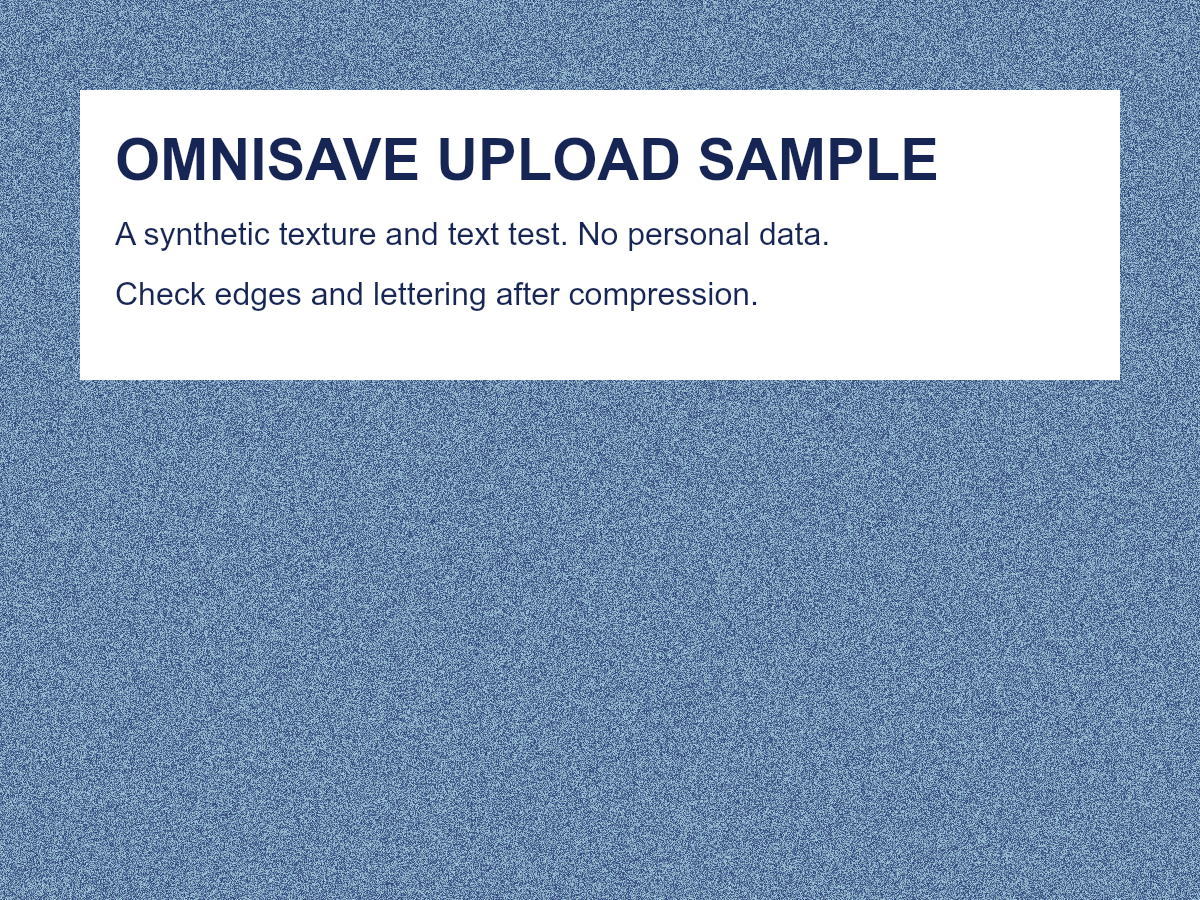
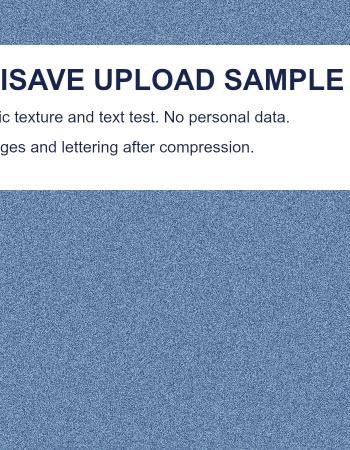
Fit a synthetic image into a 350 × 450 JPEG with a 100 KB limit. This is a dimension-and-crop exercise, not an example of an accepted passport or application photograph. The sample contains a chart rather than a real person or signature.
| Check | Original | Reference output |
|---|---|---|
| Dimensions | 1,200 × 900 px | 350 × 450 px |
| Crop rectangle | Full source | x=250, y=0, width=700, height=900 |
| File size | 2,383,432 bytes | 86,775 bytes |
Reproduce the workflow
- Load the sample, select the 350 × 450 photo example and set a maximum 100 KB JPEG. Confirm the two output dimensions before processing.
- Enter crop x=250, y=0, width=700, height=900. That rectangle has the same 7:9 shape as 350 × 450, so it fills the output without stretching or padding. Rotation stays at 0°.
- Keep “Allow smaller dimensions” disabled and “Keep original crop proportions” disabled. The explicit output width and height should be the deciding values for this exercise.
- Prepare the image, then confirm 350 × 450 in the result. The reference file is 86,775 bytes. The text is deliberately cut by the crop: this demonstrates why a correct output size does not automatically mean a good composition.
What to inspect before using the result
- For a real photo, check the entire head, shoulders and margins against the destination’s rules. Move the crop before exporting; do not rely on a width/height check to judge framing.
- For a signature, start from a separate clear image of your own signature. Crop unwanted paper edges but leave enough space that the first and last strokes remain visible. Use the exact dimensions required by the destination, not the photo example.
- If the crop shape and output shape differ, the tool fits the image with white padding. That preserves proportions, but padding may be unacceptable for your particular form. Select a matching crop shape when the frame must be filled.
When this workflow goes wrong
The file is small enough but its dimensions are rejected.
Automatic dimension reduction was enabled, or one of the output fields differs from the form.
Disable reduction, re-enter the required pixel values and prepare again. Verify the downloaded file’s dimensions as well as its size.
White borders appear around the image.
The crop and output rectangles have different aspect ratios.
Adjust the crop to match the destination’s ratio. Avoid stretching a face or signature to fill the space.
A form rejects a correctly sized photo.
File size and dimensions are only part of its rules; background, format, recency or composition may also matter.
Read the form’s original instructions. OmniSave does not certify identity-photo compliance or guarantee application acceptance.
Save a preset only after checking the destination’s current requirements. A saved preset remembers settings; it does not remember or certify the image.
Reference method: Node.js 24; @napi-rs/canvas 1.0; production image preparation and PDF page helpers; PDF.js 6.4 reference renderer; Tesseract.js 7 English OCR. Browser encoders can produce different byte sizes. Read measured reference data · How we test and maintain these examples.